
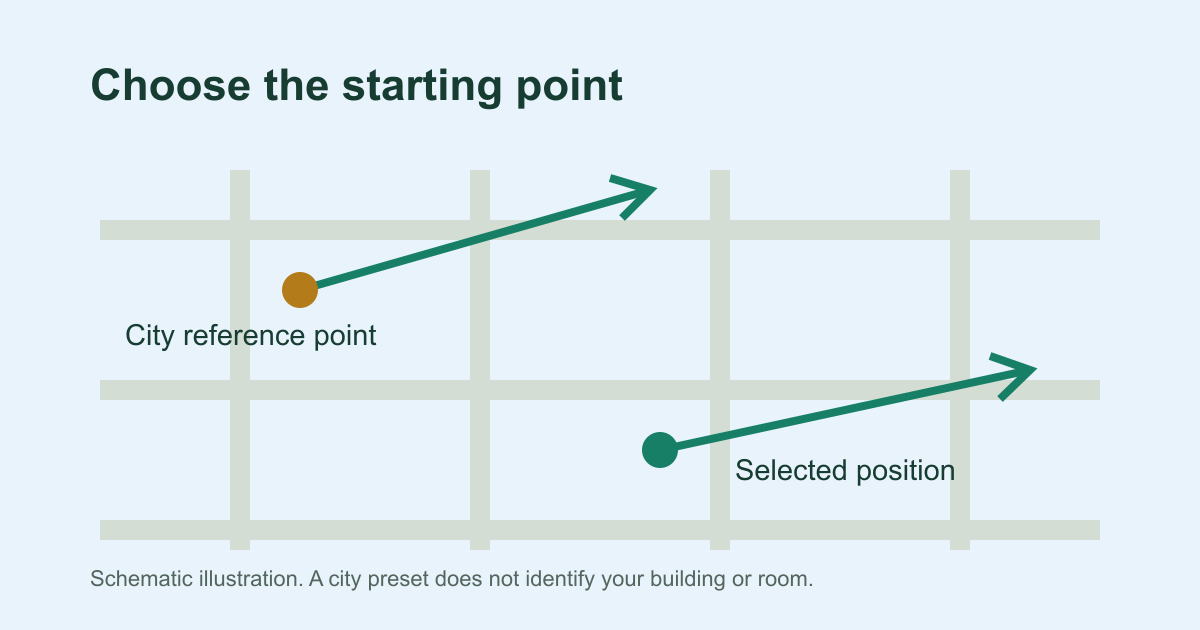
Which starting point fits your task
To find Qibla from where you are now, press Use my location. You can also type coordinates for your position and press Find my Qibla. The finder then gives a bearing in degrees, measured clockwise from true north, for that point. If you only need a quick, repeatable reference and do not want to share your location, a city preset is enough.
A device fix, typed point or map point is more specific than a city centre. It is not automatically more accurate. A device position is only as good as its reported uncertainty, and a typed or map point is only as good as its source. None of these inputs can identify a room, a wall or the way your phone is facing.
| Input | Where the point comes from | Permission needed | What it represents | Best next step |
|---|---|---|---|---|
| City preset | One of 107 bundled approximate city centres | None | A fixed point near the middle of that city | Check that both the city and the country match |
| Use my location | One position request to your browser | Location permission | Your device's reported position, with any uncertainty in metres | Read the uncertainty note before relying on it |
| Typed coordinates | Decimal latitude and longitude that you supply | None | Whatever point those numbers describe | Confirm the source and the signs of the numbers |
| Map centre | The centre of the optional map view | No location permission, but map tiles load from OpenStreetMap | The spot you moved to the centre | Zoom in far enough to place the centre where you mean |
Once you know which input fits, choose your starting point in the finder.
- 1City presetApproximate centre
- 2Use my locationOne position request
- 3Typed coordinatesDecimal degrees
- 4Map centreExternal map tiles
- Selected originLatitude · longitude
- Qibla bearingClockwise from true north
- Trusted referenceAlign the direction on the ground
What a city preset represents
A preset is one approximate coordinate for a city centre. It is not your address. When you pick a city under Search city presets, the finder loads that bundled point. The bearing then belongs to that point, wherever you happen to be standing.
This makes a preset useful as a quick, repeatable reference. You might use one to check a city before a trip, to compare results with someone in the same city, or to work without granting location access.
A large city covers many positions, so treat the preset as a reference point rather than one direction for every street. Check before you rely on it: make sure the city and the country both match, because the same name can belong to places far apart.
If your city is not in the list, the finder still works. Use your device location, the map or decimal coordinates instead. You can also browse city references for places that have their own page.
What device location adds, and what it does not
Use my location asks your browser for a position once, and only after you press it. The finder does not keep following you. The browser may refuse the request or fail to return a position. It may also block the request, for example because of a site policy or an insecure connection. If any of these happens, the finder suggests a city or coordinates instead.
When the browser reports an accuracy figure, the finder shows it as position uncertainty in metres. This is a reported radius within which your true position is expected, with about 95% confidence. It describes where you are. It does not describe how far a compass heading might be off. A missing figure does not mean the position is exact.
A device fix is still only a reported position. It may not match the spot where you are actually standing, and it is not automatically closer than a well-chosen preset. For more detail, see what the accuracy radius means.
Location access does:
- set the calculation origin to your reported position
- show a position uncertainty in metres when the browser supplies one
Location access does not:
- start a live compass
- follow you as you move
- tell the finder which room or wall you are in
Device heading is a separate step. Enable live compass asks for its own permission where the browser requires one. It works only when your device supplies a usable heading. You also need to hold the phone flat or nearly level, with the screen in portrait orientation.
When a more specific point matters
Replace a preset with your own point when the exact place affects what you are doing. Check where that point came from, or the uncertainty reported with it. Adding decimal places to a point copied from an approximate marker does not make it any more precise.
- The place itself matters. You might be planning a visit to a particular venue, or your location might be well outside the city centre. If you are comparing two tools, use the same point in both, because a comparison only makes sense from one origin.
- You are very close to the Kaaba reference point or its antipode, the opposite point on the globe. Near either one, a small shift in position can swing the bearing sharply. The finder therefore withholds a single direction within 25 metres or the supplied position uncertainty, whichever is larger. This is a cautious product rule. It is not a religious boundary and not a 95% guarantee.
Choosing a point without granting location permission
Yes, you can set an origin without granting location permission. A city preset needs no permission, and neither do the two options below.
Typed coordinates
- Open Enter coordinates instead.
- Put the latitude in Latitude and the longitude in Longitude, in decimal degrees. Use a minus sign for south latitudes and west longitudes. For example, Toronto is 43.6532 and -79.3832.
- Leave Position uncertainty (metres, optional) blank unless you know a figure for that point. A number you enter is your own estimate, not a 95% measurement. A blank field does not mean zero error.
- Press Find my Qibla.
Map centre
- Choose Open map.
- Move the map until the place you mean sits in the centre.
- Choose Use map centre.
Loading the map requests tiles from OpenStreetMap. This reveals your IP address and the area you view to the tile provider. If that matters to you, read about external map privacy first.
Why the origin you see may not be the one you picked
Always read the origin label shown with the result. When a page opens, the finder picks its starting point in this order:
- A shared link with coordinates or a named city. If the link is malformed or names a city that is not listed, you see an error and choose a location yourself, and the later steps are not used.
- On a city page, that page's city.
- On the ordinary homepage, a location you saved earlier, if you chose to remember one.
City pages never save a location or tick Remember on their own. These controls decide what is kept:
- Remember this location on this device is off the first time you use the finder. If you ticked it on an earlier visit, it may appear ticked again along with that saved point.
- Reset finder clears the current point. It leaves an earlier saved record in place.
- Clear saved location, or unticking Remember, removes the saved point when the browser allows it. If removal fails, the finder asks you to clear this site's data in your browser settings.
- Share location creates a link that contains the coordinates, label and any uncertainty. Anyone who receives the link can see those details, and so can your browser history and the sharing service. The link is not anonymous.
Remember covers only the selected location. Your theme choice, browser history and links you have already shared are kept separately. To start fresh, choose your starting point again.
After choosing: turn the bearing into a direction
Whatever input you used, the result is a spherical initial great-circle bearing from that origin, shown in degrees from true north. This is the direction to face. The heading your phone displays is a different number, and it can differ from the bearing.
- Check that the origin label matches the place you intended.
- Check again after travelling. A saved point stays the old point until you replace it.
- Face the bearing using a trusted true-north reference. An ordinary magnetic compass needs adjusting for local magnetic declination before you use it. Follow the steps to apply the calculated bearing.